

Bloomin' Metric®:
Electronic Navigation
We are providing you with simple technical information below about how you can navigate confidently around the routes. Two weeks before, we will start sending to all paid participants an email "Invite Link" with the four Bloomin' Metric routes. Using this link will give you full access to navigate the routes with turn-by-turn audio and/or visual cues and access to download a cue sheet (also available at check-in).
Starting with Using Your Phone
The first thing you should do if you do not already have it, is download the RWGPS app to your phone and create an account for FREE. Do not purchase any offered services! Then log into the account you just set up. DO NOT WAIT until the day of the event to do this. You can set up your phone well in advance of receiving the first invite link we send.
The app icon looks like this.


Download the app from your app store.

Event Link
When you receive your Invite Link and click on it using your smart phone, it will add an Events icon on the home page of your phone's RWGPS app where all the routes will reside. We strongly suggest you IMMEDIATELY download the routes directly into your RWGPS app's library. See the Why Navigate Offline section just below. By doing this and navigating from there, you do not need the Internet while you ride. Download a PDF tutorial in that section just below.
The Events icon looks like this.

When Using Your Computer
In advance of receiving your Invite Link, go to https://ridewithgps.com and join RWGPS for FREE and set up an account if you haven't already. When you click on the Invite Link, it will open up in RWGPS and display the four Bloomin' Metric routes. People with navigational devices like Garmins or Wahoos do this to transfer the routes directly into their devices or if you want to get cue sheets to print out.
NOTE: Garmin, Wahoo, Karoo users might want to download the routes onto their phones and pin those rides. Many nav head units allow you to transfer the routes from your phone directly into your units via Bluetooth rather than using your computer.
Why Navigate Offline
When you select a route(s) we will eventually be sending you, it's best to download it into your RWGPS app's OFFLINE area. When it's time to ride, you select it from your Offline Library (not from the original link). You will be getting all the cues directly from your phone and not over the Internet. This means you are not using any data from your service and you do not require any Internet Service.

Click on the PDF icon here to download a tutorial.
Cautions When You Navigate the Routes
IMPORTANT: If there is an unexpected last minute change in the routes due to a road closure, cue sheets and signage will no longer be accurate. Also. we cannot guarantee that signs will not be tampered with, either by changing their direction or theft. We suggest you take a cue sheet if you only follow signs. You'll need it should you get lost. Otherwise, consider using RWGPS as the better backup.
UPDATING: If there is an unexpected last minute change, we will make every effort to update the RWGPS routes. Those who navigate with RWGPS on their phone from their Offline library, your route(s) will automatically update. If you're using a navigation unit, you will have to unpin and repin the ride to update it.
Click the button below to watch a video that explains everything you need to do once you receive the link that invites you to the Event.


Garmin, Wahoo, etc . . .
Many cyclists have been using these devices for years and pretty much know how they work and how you transfer the data from the links we provide. Some cyclists will transfer their ride(s) via a Bluetooth connection from their phones, while some choose to plug it into their computers. Don't forget to pin your routes. Planning ahead is the key. So, loading the routes ahead of time into your devices is a good plan.
Your Smart Phone

Other cyclists elect to use their smart phones instead of Garmins, Wahoos and Karoos, and if you have only used cue sheets in the past this is a great opportunity to use this option. It's very easy to set up. If you already own a smart phone, you can use it to navigate the route without having to read a cue sheet. Just turn up your volume and the cues will all be read to you. Not only will you hear the turn cues at the precise spot being read off to you but all the advance warning cues and custom alerts cues as well. If you get a phone mount for your bike, you will even see the cues right on the phone. All you need to do is go to your phone's app store and download the Ride with GPS app for free and set up a free account. The video above will step you through the process. Getting your route ahead of time into your phone is a good plan.
Other Ways of Getting Around
Road Signs
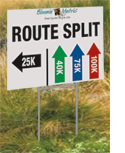
We brought back the signs for 2026 so you now have another way to get around the routes. It would be irresponsible for us not to caution you about solely using signs as your way to navigate the routes. Over the years we have been plagued with the signs being turned in the wrong direction to mislead our riders or they have been taken completely. We do run a check in the morning but we can't control what happens during the day. Signs can also blow away from high winds. We cannot guarantee that signs will not be tampered with. Have a backup plan. Have a cue sheet with you if you get lost. Better yet, we strongly suggest you try using RWGPS on your phone. It's the better backup and can lead you back to the route should you get lost.

Cue Sheets
If you find electronics completely daunting with absolutely no hope in figuring it out, you can download and print out a cue sheet (and map) from RWGPS. It's best to use your computer and click on the link that will be sent to you. The rides will open up on RWGPS's website. Sign in with your account if you set one up in advance. Otherwise you will have to create an account.
1.) Click on the orange Continue to event button.
2.) Click on the ride you intend to do on the left side of the page and then click on the orange Go to route link.
3.) Click on the More box at the top and select Print Map & Cue PDF or Print Cuesheet.
Please do this well in advance of the ride.
1.) Click on the orange Continue to event button.
2.) Click on the ride you intend to do on the left side of the page and then click on the orange Go to route link.
3.) Click on the More box at the top and select Print Map & Cue PDF or Print Cuesheet.
Please do this well in advance of the ride.